OrgTodo for Sandstorm
Table of Contents
1. OrgTodo, a simple task tracker for Sandstorm
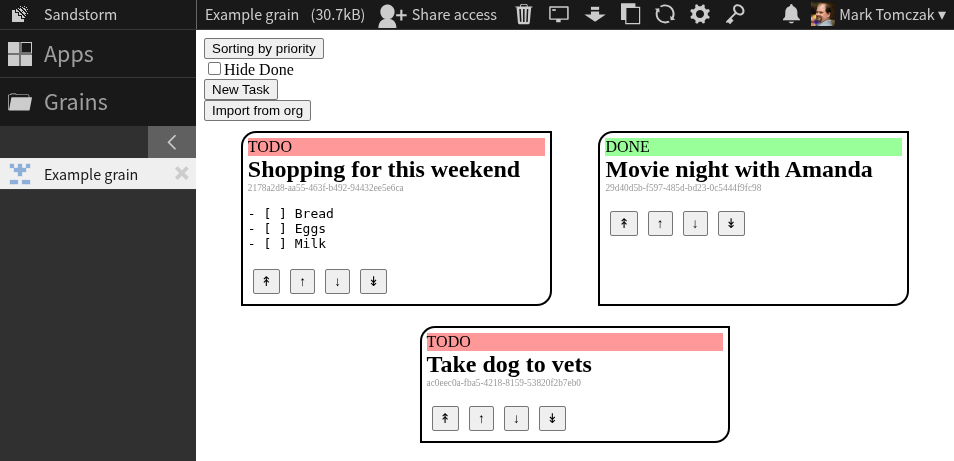
OrgTodo is a simple TODO list for Sandstorm that features easy integration with emacs org-mode (via copy-paste). It can be run as a Sandstorm app.
Source can be found at https://github.com/fixermark/orgtodo.
2. Using OrgTodo
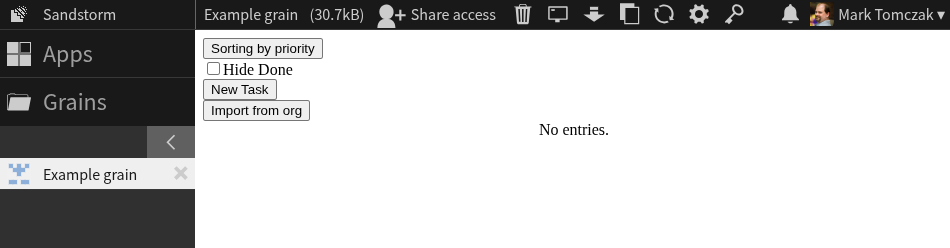
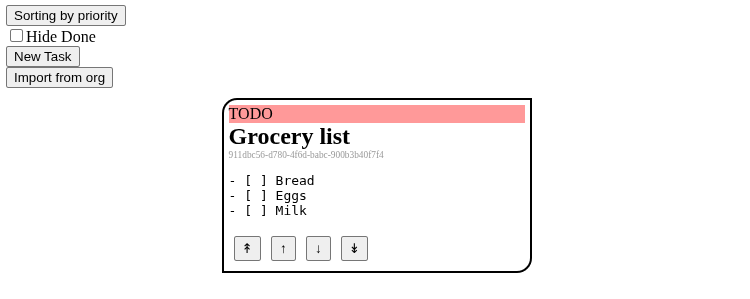
After creating a grain in OrgTodo, you should see the following:
2.1. Creating TODO items
There are two ways to create some TODO items.
2.1.1. One-at-a-time
Click on New Task. You can specify a headline and main body text below.
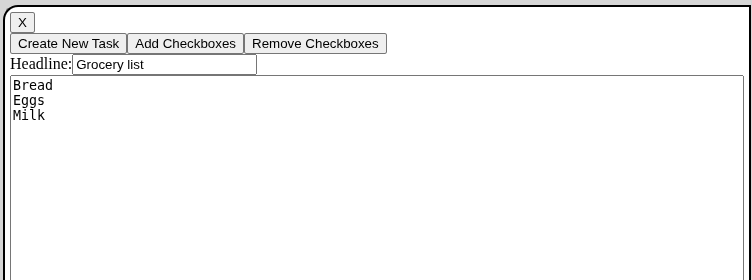
If you want to have checkboxes underneath your TODO item, click Add Checkboxes.
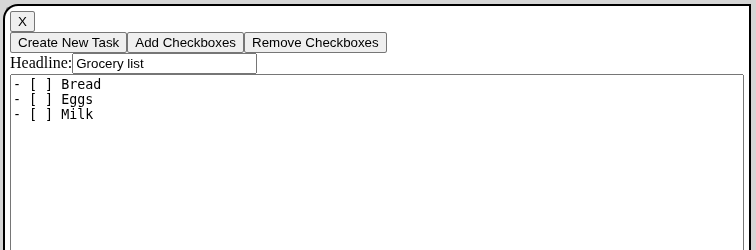
Click Create New Task.
2.1.2. Full import
Click on Import from org. The dialog box lists all the TODO items in the grain as a series of headlines.
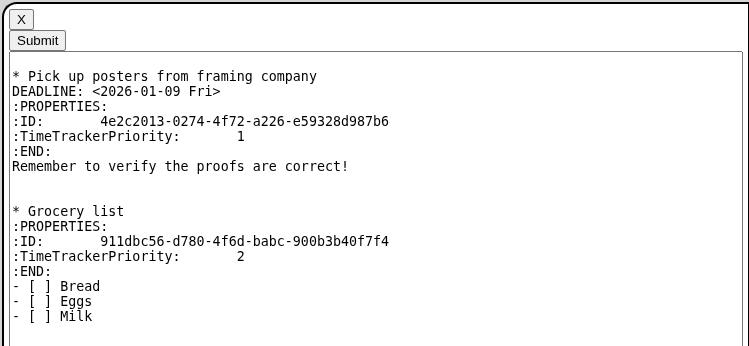
Note that several items are added here:
- ID property: unique identifier to allow the TODO item to be tracked in the database
- TimeTrackerPriority: Tracks how the items in the TODO list should be sorted. Lower numbers are higher priority.
The text in the box can be copied-and-pasted directly into an emacs org file. Conversely, An emacs org file's contents can be copied and pasted into this dialog. Every headline will be interpreted as a TODO item (but see Import caveat below).
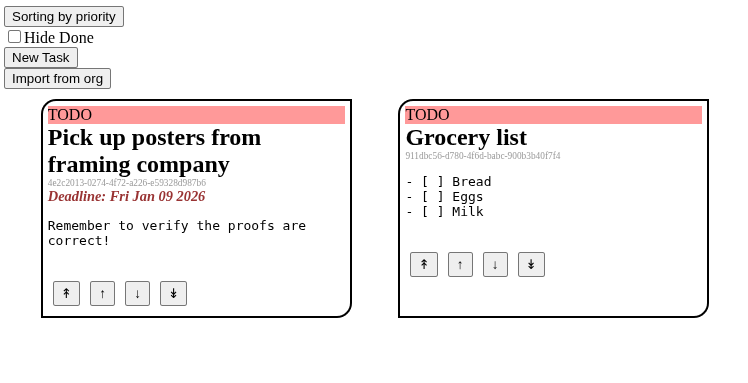
Clicking Submit will replace all existing TODOs with the ones you specify.
2.1.2.1. Import caveat
- Headline nesting isn't maintained on import; each headline, regardless of level, is treated as a top-level TODO item and will be rearranged by reordering.
- org DEADLINE is supported, but if the entry lacks a
:PROPERTIES:block, the DEADLINE will be interpreted as part of the body. - Checkboxes are supported, but simply: OrgTodo interprets
- [ ]as unchecked and- [anything]as checked (though it emits- [X]for checked when the value is changed…Hi Postel!).
2.2. Editing items
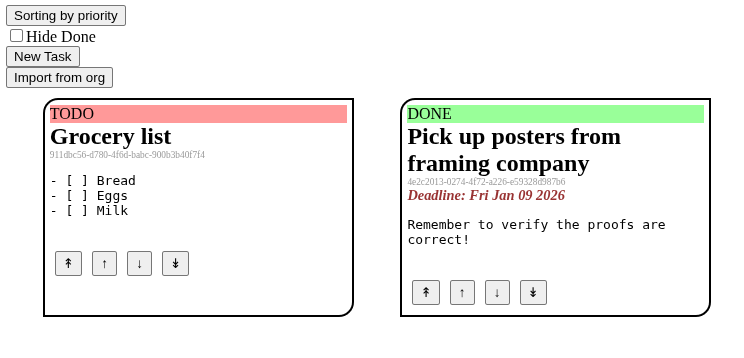
From the main interface, you can modify items' status and priority and adjust how they are displayed.
To change the status of a TODO item, click the red TODO bar. This changes it to
DONE.
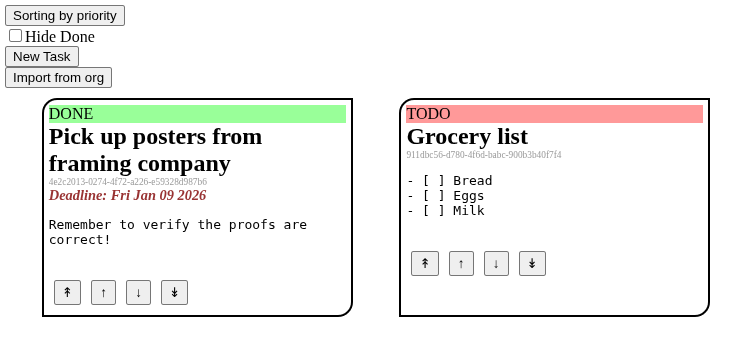
The four buttons at the bottom of a TODO item control ordering. The outer two move an item to the top or bottom of the list; the middle two swap it with its neighbor one higher or one lower in priority.
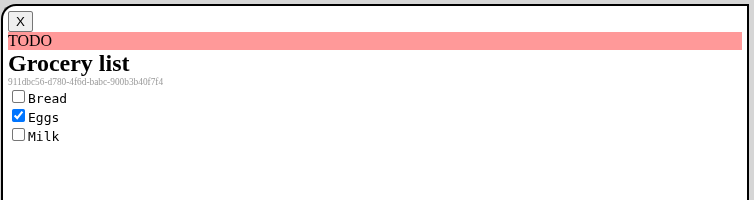
You can also get a detailed view of one item by clicking its body text. In this
view, items that have checkboxes associated will have checkboxes that can be
toggled on or off. Clicking the X button closes the detail view. You can also
edit the body of the TODO item by clicking Edit here, and edit the deadline by
clicking on the deadline text.
2.3. Controlling display state
On the main view, you can control ordering of items by clicking Sorting by priority to toggle it to Sorting by deadline. You can also toggle the Hide Done checkbox to hide items that are already marked DONE.
3. Conclusion
That's everything! I hope this is useful to you.
Take care,
Mark